New here? Start here: your first 14 days explains the dashboard. If a message isn't here, see Still stuck? for what to send support.
Your account has no AI key, so no project can generate anything. This is the one setup step that blocks everything downstream.
Go to Settings → AI keys → Add key. You only do it once — every project on your account shares the same key. See Get an AI key.
"Your AI key can't make pin content"
Your [provider] key "[name]" can't generate text because [reason], so nothing new is being made. Every project uses it, so fixing it once fixes them all.
This is the most important task on the list, and the reason it gives tells you what to do:
If you have more than one key and none of them work, the task says so instead:
None of your [N] AI keys can generate text right now, so nothing new is being made. Open your AI keys to see what is wrong with each.
Fix the cause, then Test connection from the key's menu.
Fix the cause at the provider, then Test connection again. If the key itself was wrong, edit the credential and paste the correct one.
A key that runs out of credit after it was working shows up in Activity as:
Auto-disabled the [provider] key "[name]" due to a billing issue: …
Same fix: top up, then Test connection.
You're on an Anthropic key, and Anthropic has no image capability. You'll get titles and descriptions but never pin images. Get an AI key compares the providers.
Add an OpenAI or Gemini key for image work. You can keep the Anthropic key for text — a project can draw text from one and images from another.
This [provider] key is already saved on your account. Bind a project to the existing credential instead of adding the key again.
You already have that key. Use the existing one rather than adding it twice; your projects are already pointed at it.
Check, in order:
It resumes by itself. Nothing was lost — whatever you were part-way through is still there, exactly as you left it. There's nothing to click and nothing to buy. Carry on.
"[project]" has used its AI allowance for [what], so no more are being made for now. Pins that are already prepared keep publishing. The allowance starts freeing up at midnight UTC.
Each project gets a daily allowance of AI work sized to how many pins it publishes, so one project can't run up your provider bill on its own. When it's spent, that project stops making new content until the allowance frees up.
Nothing else stops. Pins already prepared keep going out on schedule.
This one is your AI provider throttling you, not us. It clears after the stated time.
If it happens constantly, your provider account has a low rate limit. Raise the limit at your provider, or lower Text requests per minute and Images per minute on your key to match what the provider actually allows.
This is the per-minute limit you set on your key, not your provider's. It clears after the stated time. If you want more throughput, raise Text requests per minute or Images per minute in the key's settings — as long as your provider account allows that rate.
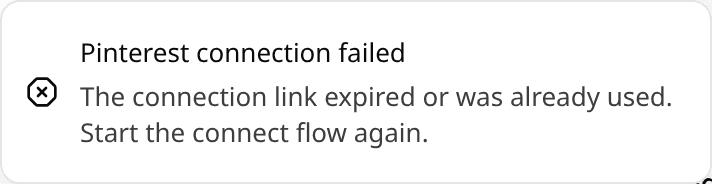
You took too long between starting the connection and finishing it on Pinterest's side — the connection has a short security window — or you came back to a stale browser tab and used a link that had already been spent.
Nothing is broken. Press Connect Pinterest again and go through it in one sitting.
The handoff back from Pinterest failed. Retry once. If it keeps happening it isn't something you can fix from your side — contact support with the address from your browser's address bar.
The Pinterest connection for "[project]" stopped working. Reconnect the account to resume publishing.
Pinterest stopped accepting the project's connection. Press Reconnect on the task — it takes you to the project's connection page — and approve the app on Pinterest again.
Pinterest publishing for "[project]" was disabled automatically. Review the project to re-enable it.
The app switches publishing off for a project when Pinterest refuses it outright, so it doesn't keep hammering a connection that can't work. Press Review on the task to open the project's settings. If the connection is the problem, reconnect first.
Connections are per project, not per account. Connecting one project does not connect the others.
Open the project you're actually working in and connect it.
You're trying to connect an account to a project that already has one. Connections are one-to-one: disconnect the current account first, then connect the new one.
You asked to restore a connection that was never disconnected, or that has since been cleared. Connect fresh instead.
This one is on our side, not yours — the Pinterest integration is switched off platform-wide. Nothing you can do from your account will change it.
Your connection was made before that permission existed, and a connection keeps whatever you approved at the time.
Press Reconnect on the project's connection page to approve the current set. See Connect Pinterest.
Work down this list — it's ordered by how often each one is the answer.
Generation fills a queue of candidates; approval is what makes a pin eligible to publish. An unapproved pin waits indefinitely and that's by design — nothing goes to Pinterest without your say-so.
Open Pin Content and approve it. Tasks shows the total as "[N] pins waiting for your approval". Generate and approve your first pins covers both approvals.
Publishing needs a paid plan Your projects, pins and history stay exactly as they are.
Your dashboard says the same thing at the top:
Your pins are ready. Pinterest isn't seeing them.
You're on the free plan, where publishing isn't included. Your projects, pins, boards and history are exactly where you left them. Nothing new is scheduled while you're on free, and a pin that was already scheduled shows Failed with the reason "Publishing needs a paid plan." — the pin itself isn't lost.
Move to any paid plan and publishing resumes against what you already have: pins that were held back go back into the schedule automatically. See Free vs paid.
Monthly pin limit reached You have reached your monthly limit of [N] pins. Upgrade for more.
You've published this month's allowance. Your dashboard shows "You've published every pin this month" with the date publishing resumes, and the Billing page shows the same reset date under Pins this month.
Nothing new is scheduled until then, and a pin that came due shows Failed with the reason "Monthly pin limit reached." Those pins aren't lost — once the allowance resets, they go back into the schedule automatically.
Publishing is paced on purpose, so "queued" is the normal state for most pins most of the time. Check Scheduled Pins for its scheduled time. Publishing explains the pacing.
Each plan publishes up to a set number of pins per project per day. If you schedule a pin by hand on a day that's already full, you'll see:
This project is already at its limit of [N] pin(s) for [day]. Pick another day, raise this project's daily pin limit if it is below your plan's, or move to a plan with a higher daily limit.
If your account is newly connected, it starts gently and builds up rather than going straight to full volume.
5. The post has no board
Every post needs at least one board to pin to. Tasks flags it as "[N] blog post(s) have no Pinterest board" — attach a board on the post's Boards tab, or delete the post.
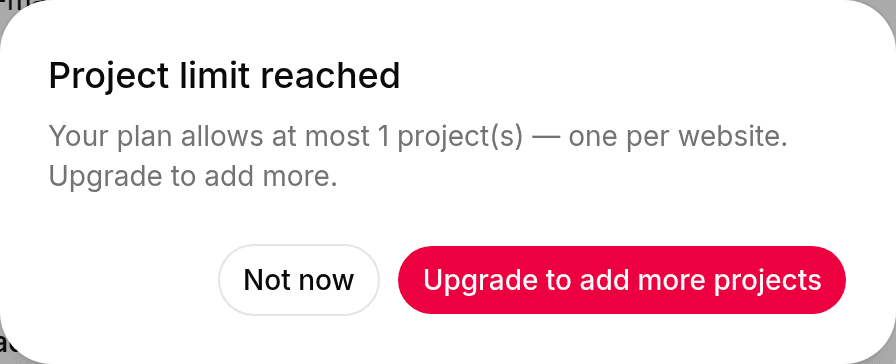
Project limit reached Your plan allows at most [N] project(s) — one per website. Upgrade to add more.