Connecting links one project to one Pinterest account so it can sync your boards, publish pins, and read analytics. You need a project first.
Your Pinterest password is never involved. The connection uses Pinterest's official OAuth flow: you sign in on Pinterest's own site, approve the access, and Pinterest hands us a token. We never see your password and could not store it if we wanted to.
Connect it
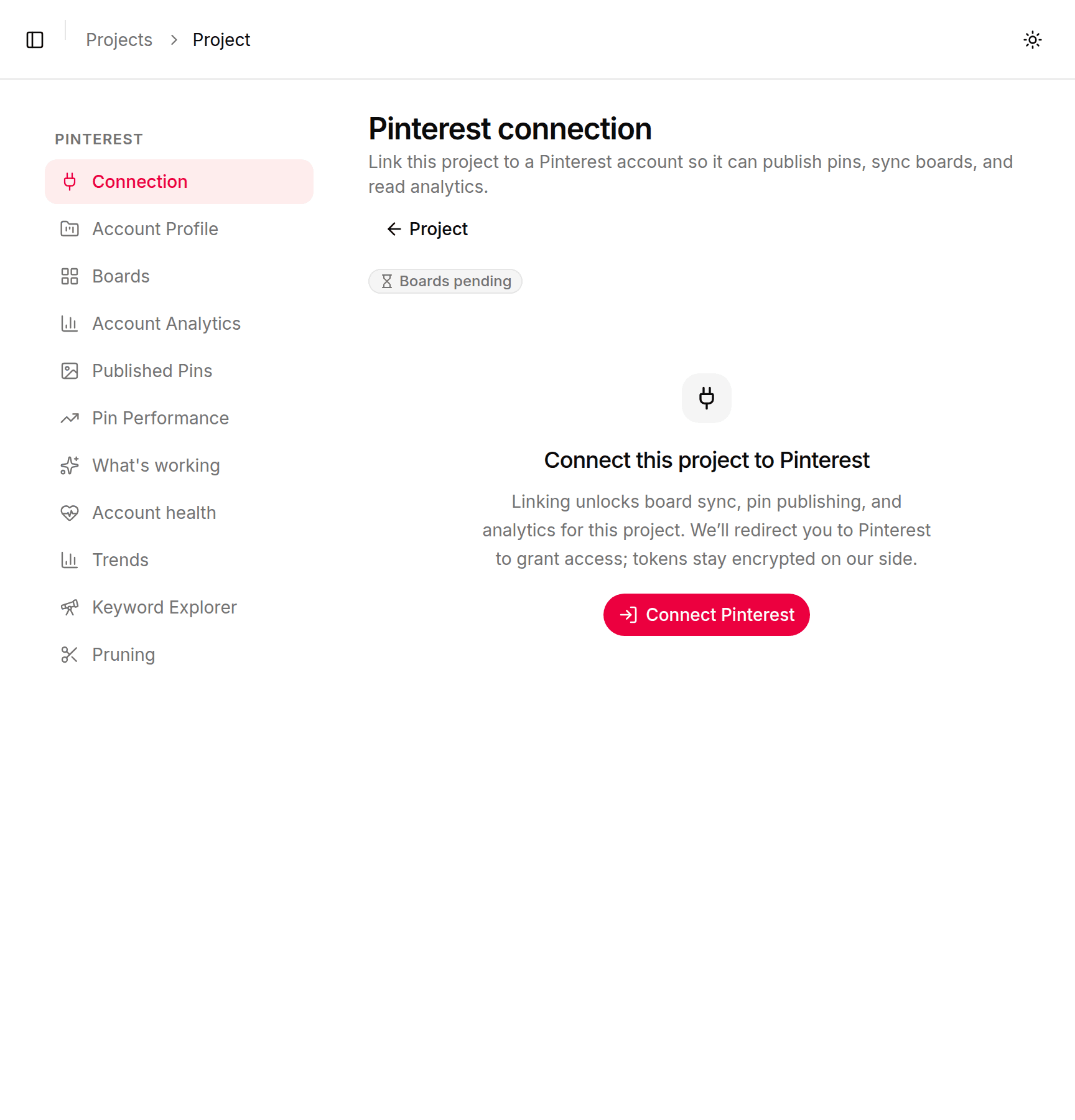
Open the project and go to Pinterest → Connection. On an unconnected project you'll see Connect this project to Pinterest:
Linking unlocks board sync, pin publishing, and analytics for this project. We'll redirect you to Pinterest to grant access; tokens stay encrypted on our side.
Connect a project
1
Open the project's Pinterest → Connection page.
It reads Connect this project to Pinterest until it's connected.
2
Press Connect Pinterest.
The button reads Redirecting to Pinterest… while it hands you over.
3
Sign in on Pinterest and approve.
Pinterest lists the permissions being requested; they're explained below.
4
Land back in Pinners Haven.
A Pinterest connected notice confirms it, and your boards start syncing.
What you're approving
Pinterest will list the permissions being requested. In plain terms, you're allowing Pinners Haven to:
See your boards, including secret ones
Create boards on your behalf
Read your existing pins
Publish pins for you
Read your profile and account analytics
Read Pinterest's keyword data, which is what powers the keyword explorer
Each one is a named Pinterest permission (a "scope"), and Pinterest's authentication guide lists them all.
What connecting does not grant, and never will: auto-following, auto-liking, or auto-commenting. Pinners Haven does none of those things, and Pinterest's Developer Guidelines require that "the end user must choose each account to follow." The same guidelines are why you approve every pin before it publishes; see Generate and approve your first pins.
Confirm it worked
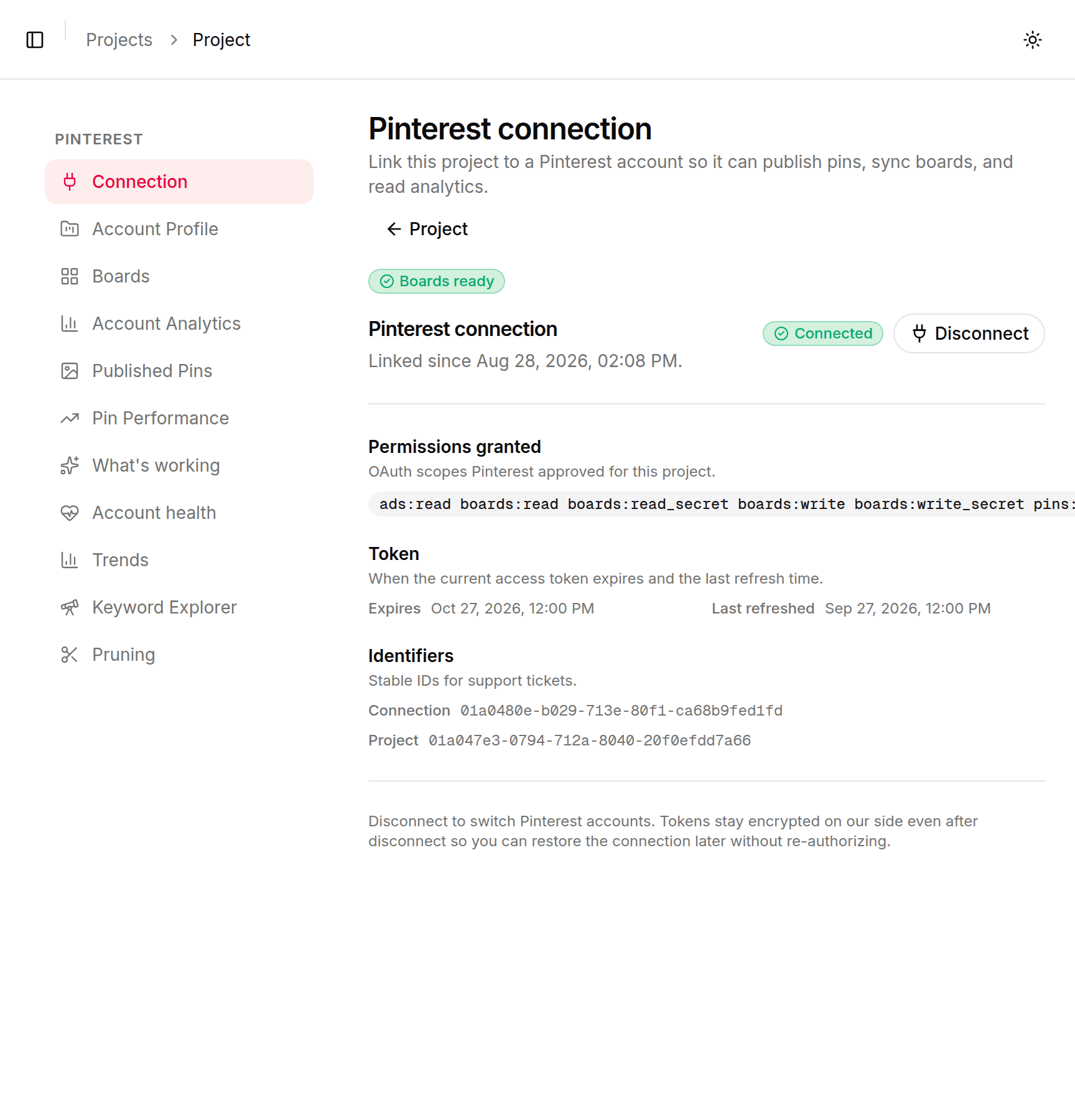
Back in the app you'll see a Pinterest connected notice — "This project can now publish pins and sync boards." The Connection page shows a Connected badge and, once the first sync finishes, the project reads Boards ready.
Under Pinterest connection you'll see:
Linked since — when the connection was made.
Permissions granted — exactly what Pinterest approved. Useful later: if a feature says it lacks a permission, this is where you check.
Token — when the current access token expires and when it last refreshed. Pinterest's access tokens last 30 days; you don't need to do anything about this, because the app refreshes them on its own before they lapse.
Identifiers — connection and project IDs. Quote these if you contact support.
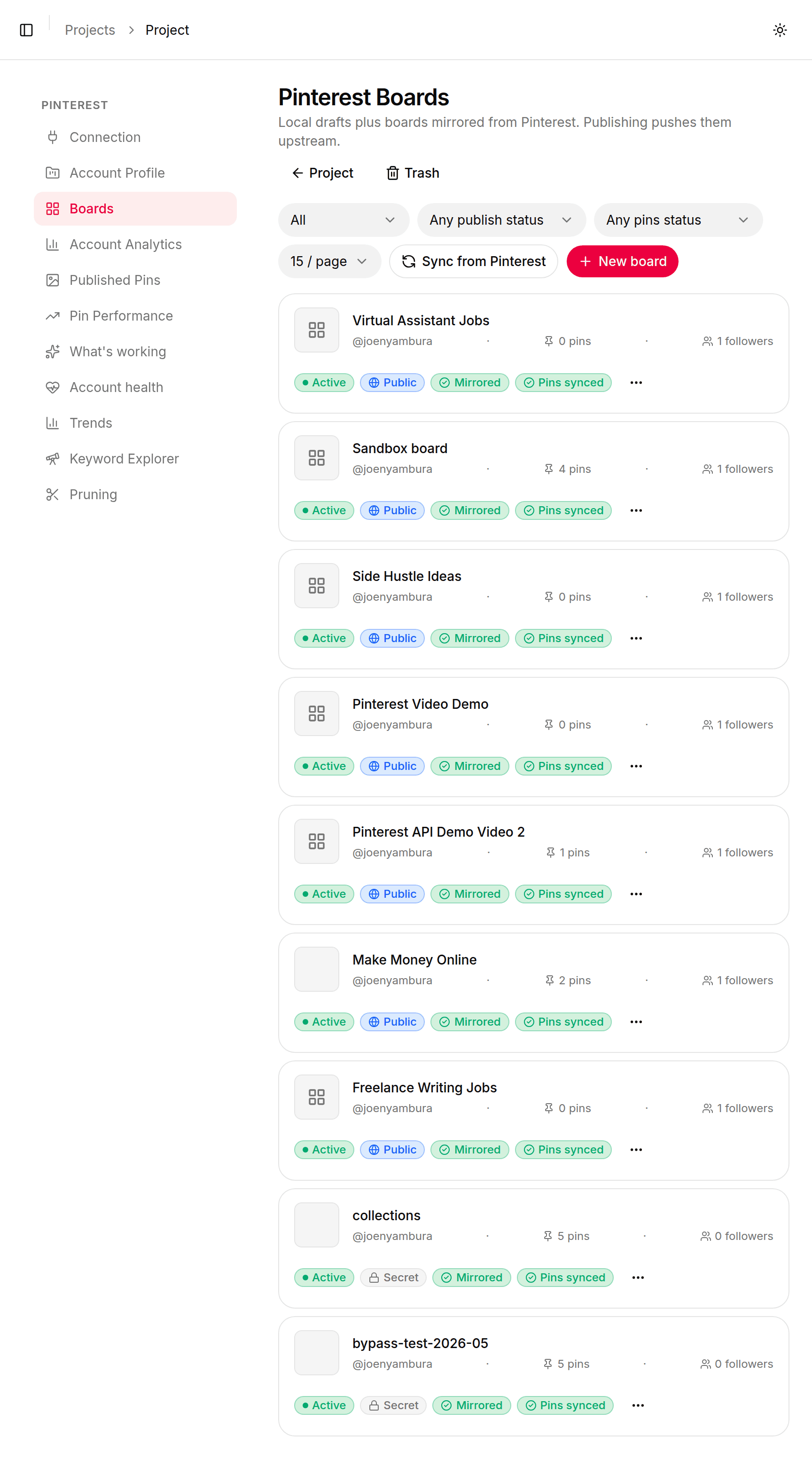
Your boards are pulled in automatically. Check them under Pinterest → Boards — each shows whether it's Public or Secret, and whether its pins have synced.
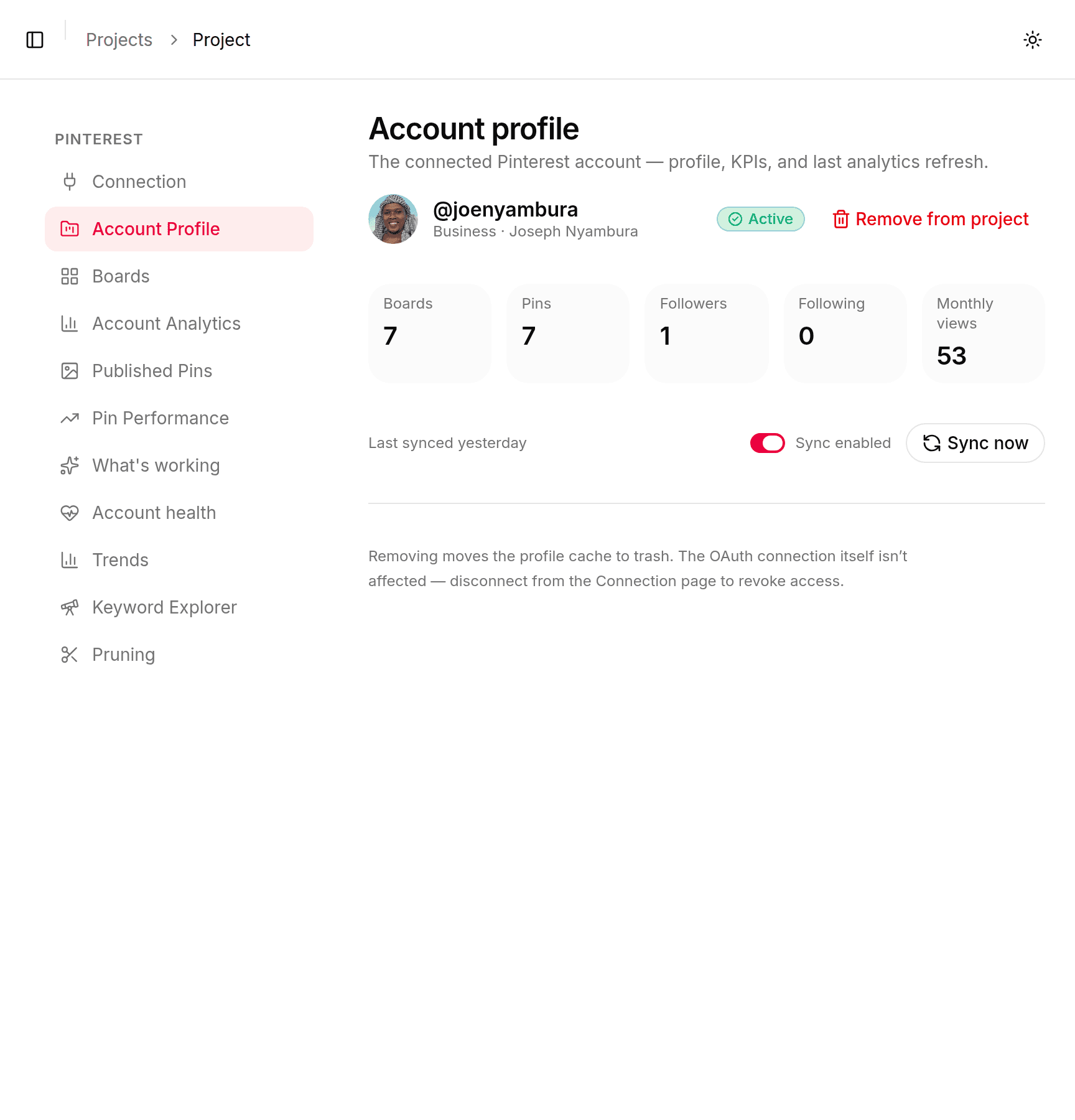
You can see the connected account, and what it looks like on Pinterest, under Pinterest → Account Profile:
Switching to a different Pinterest account
Press Disconnect on the Connection page. The app asks Disconnect from Pinterest? and spells out what happens:
Disconnect deactivates this Pinterest connection. Tokens stay encrypted on our side so you can restore the connection later without re-authorizing.
Then connect again with the other account.
Disconnecting is reversible. The page switches to Pinterest connection deactivated, and from there you have two ways back and one way out:
Restore connection brings the old connection back without signing in again, as long as Pinterest still accepts the saved sign-in.
Reconnect Pinterest signs in fresh. Use it when the saved sign-in no longer works; the page tells you which case you're in.
Disconnect permanently asks Permanently delete Pinterest connection? and does exactly that: it "wipes the stored Pinterest tokens for this project and removes the row entirely." You'll have to connect from scratch, and the project's board sync starts over.
When something goes wrong
Connection failures show as a Pinterest connection failed notice with one of the lines below underneath. Problems after you're connected, such as publishing stopping, are in Troubleshooting.
Connection problems
"The connection link expired or was already used. Start the connect flow again."
You took longer than five minutes between pressing Connect Pinterest and finishing on Pinterest's side, or you used a stale browser tab. Nothing is broken. Press Connect Pinterest again and complete it in one go.
"Pinterest rejected the authorization. Try connecting again."
The handoff back from Pinterest failed. Retry once. If it keeps happening it's not something you can fix from your side: contact support and quote the connection ID from the Connection page.
"This project is already connected to Pinterest. Disconnect first to switch accounts."
Something asked for boards or publishing on a project with no connection. Check you're on the project you think you are: connections are per project, not per account. Connecting one project doesn't connect the others.
The badge says Expired
The access token lapsed and couldn't be renewed on its own. Press Reconnect beside the badge and sign in again. Your boards and schedule stay as they are.
A red banner says "Publishing paused", "Pinterest signed this project out" or "Pinterest refused access to the account"
Pinterest turned down a request, so the app stopped publishing for this project rather than keep failing. The banner shows what Pinterest said and when it paused. For Pinterest refused access to the account, the account itself has a problem on Pinterest's side (it may be suspended or restricted), so sort that out on Pinterest first. In every case, press Reconnect in the banner to sign in again and resume.
A feature says a permission is missing
Your connection was made before that permission existed. A connection keeps whatever you approved at the time, so newer permissions only apply to new connections. Press Reconnect to approve the current set.