The full OpenAI setup for Pinners Haven: credit, organization verification, the right key settings, what it costs, and how to fix a key that stops working.
Getting startedVerified October 2026
Screens in this article
Open these alongside the guide. Every screenshot below was captured from exactly these routes.
OpenAI is the provider we recommend. One OpenAI key writes your pin titles and descriptions and designs your pin images, so there's nothing else to set up. Get an AI key compares all three providers; this is the full OpenAI walkthrough, including the parts of OpenAI's console that trip people up.
Sign in at platform.openai.com with your normal OpenAI login. If you use ChatGPT, that same login works.
2. Buy credit and turn on auto-reload
The API is prepaid. Until there's credit on the account, every request is refused, including the ones Pinners Haven makes.
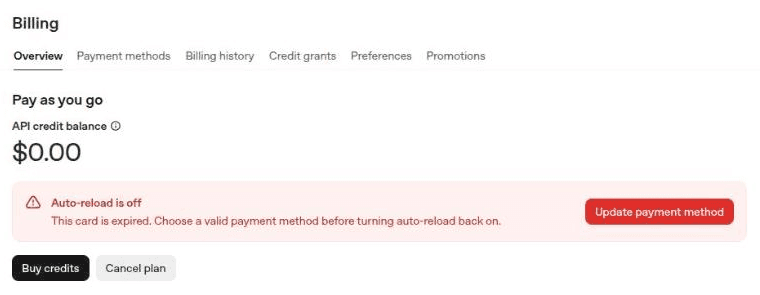
Open Billing in the platform. This is what an account with no credit looks like:
Press Buy credits and add $5. That's enough to start, and it's also what unlocks OpenAI's first paid usage tier (see usage tiers). While you're there, turn on auto-reload, which tops the balance up when it runs low.
3. Verify your organization
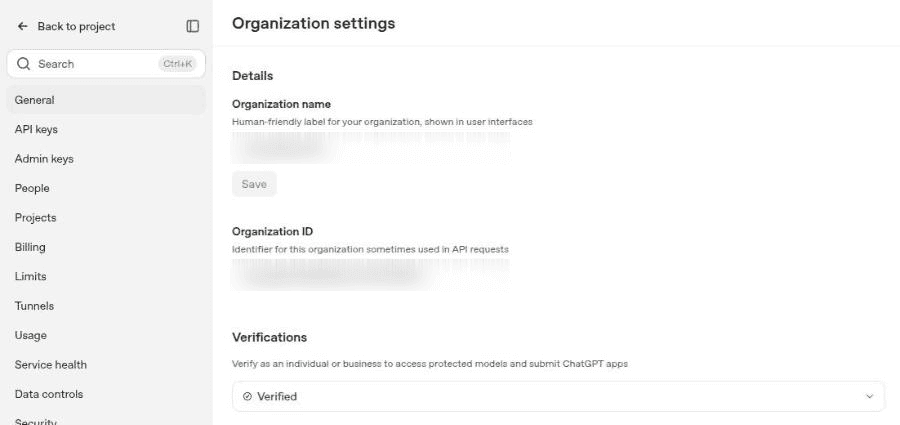
OpenAI's image models are protected. In OpenAI's words, "you may need to complete the API Organization Verification … before using GPT Image models." Pinners Haven designs your pin images with one of those models.
If it isn't verified yet, start verification there. OpenAI describes it as verifying "as an individual or business"; it's an identity check, separate from adding a card. OpenAI's help article, API Organization Verification, covers what it asks for.
4. Create the key
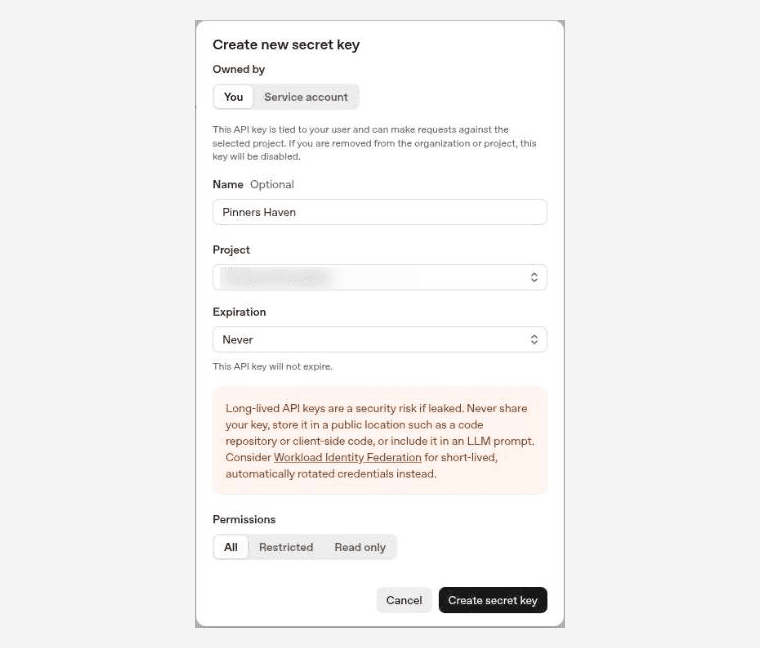
Open API keys and press Create new secret key (top right). Fill in the dialog:
Field
Choose
Why
Owned by
You
Fine for a single account.
Name
Pinners Haven
Optional, but tells you later which key this is.
Project
Your default project
See the note on allowed models below.
Expiration
Never
A key with an expiry date stops on that date, and every project using it stops with it.
Permissions
All
Pinners Haven needs to write text and generate images.
When you choose Never, OpenAI warns that "long-lived API keys are a security risk if leaked." That's sound advice for keys that sit in code. Pinners Haven stores your key encrypted and never shows it back to anyone, so the risk OpenAI describes is the key leaking from somewhere else. If you'd rather rotate, pick an expiry and set yourself a reminder to replace the key in Pinners Haven first.
Press Create secret key:
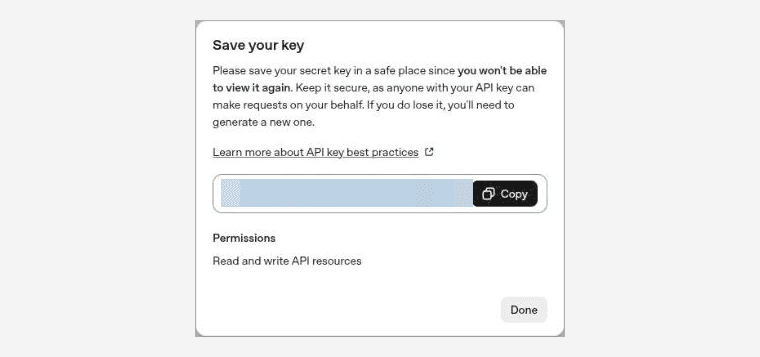
Copy the key now. OpenAI is blunt about it: "you won't be able to view it again." Keys start with sk-; newer ones start sk-proj-. If you lose it, revoke it and create another.
5. Add it to Pinners Haven
In Pinners Haven, go to Settings → AI keys → Add key. The OpenAI tab of the walkthrough card links to each OpenAI page you just used.
Field
What to enter
Provider
OpenAI. "You cannot change this later — a key belongs to the provider that issued it."
Name
Anything you'll recognise, such as Main OpenAI key.
API key
Paste it. It's "pasted once and encrypted."
Organization ID
Leave empty. It's "only needed if your OpenAI account belongs to several organizations."
Titles and descriptions and Images
Leave both on.
Text requests per minute and Images per minute
Keep the defaults, 10 and 1. Both sit well inside OpenAI's limits on its first paid tier.
Press Add key. The badge moves from Untested to Testing, then settles on Connected.
That's the whole job. Every project that doesn't have a key yet picks this one up on its own; Create your first project covers what happens next.
How OpenAI's usage tiers affect you
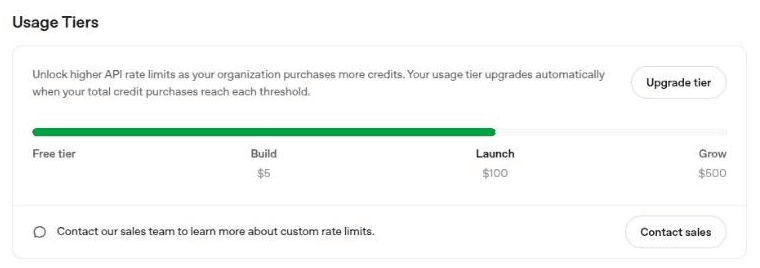
OpenAI raises your rate limits as you buy more credit. As of October 2026 the tiers are Build, Launch and Grow, unlocked by your total credit purchases. Your tier is on the Limits page:
Tier
Unlocked at (total credit bought)
Images per minute (gpt-image-2.5-flare)
Build
$5
20
Launch
$100
150
Grow
$500
250
Pinners Haven's default asks for 1 image a minute, so you won't reach OpenAI's ceiling on the defaults. If you raise Images per minute on the key later, keep it under your tier's figure.
OpenAI renamed these tiers recently, so older guides still say "Tier 1" through "Tier 5". Your Limits page is the source of truth.
What it costs
You pay OpenAI directly; Pinners Haven adds nothing. The app's own figure, measured on real pins, is "about $0.36 per pin with images, so about $11 a month for every pin a day you post."
The detail, from OpenAI's model pages:
What
Model
OpenAI's price
Pin titles and descriptions
gpt-5.4
$2.50 per 1M input tokens, $15 per 1M output tokens
Pin images (portrait, medium quality by default)
gpt-image-2.5-flare
$30 per 1M image output tokens
OpenAI doesn't publish a fixed per-image price for gpt-image-2.5-flare; it depends on how many tokens each render uses. For a sense of scale, OpenAI lists a medium-quality portrait from the previous model, GPT Image 2, at $0.041. Watch your real spend on OpenAI's Usage page.
When the key stops working
My dashboard says "Your AI key can't make pin content … OpenAI reported no credit on it"
Open OpenAI's Billing page. If the balance is $0.00, buy credit; if the red auto-reload notice is showing, update the card first, then turn auto-reload back on. If the balance is fine, check Verifications in Organization settings: an unverified organization can produce this same message when Pinners Haven asks for an image. Then open the key's menu in Pinners Haven and choose Test connection.
My key shows "Failed" straight after I add it
Open the key's menu and choose Test connection to see OpenAI's own reason. Almost always it's a key that was copied incompletely, an account with no credit yet, or a key that's been revoked or has expired. Fix it at OpenAI, then test again; the key switches itself back on once a test passes.
My dashboard says "Your AI key isn't allowed to use its model"
Your OpenAI project only allows listed models and Pinners Haven's model isn't on the list. The task names the model. Add it under Project settings → Limits → Allowed models in OpenAI, or choose a different model for the project on its AI setup page in Pinners Haven.
I see "Rate limit reached for [capability] on the [provider] credential. Retry in [N] seconds."
OpenAI is throttling the account, not us. It clears after the stated time. If it keeps happening, lower the per-minute budget on the key in Pinners Haven, or check your tier on OpenAI's Limits page.
I rotated or deleted the key at OpenAI
Pinners Haven still holds the old one. Create the new key, add it under Settings → AI keys → Add key, then delete the old credential so your projects move to the working key.
Does ChatGPT Plus cover any of this?
No. ChatGPT and the API are billed separately; the API runs on its own prepaid credit.
For anything else, Troubleshooting lists every message the app shows and what to do about it.
Sources
Checked against OpenAI's documentation and console in October 2026. OpenAI changes these pages; if something here disagrees with your console, the console is right.