Approved pins don't go out all at once. They're spread over time, deliberately.
This page covers how that works, how to steer it, and where to check what actually went live.
Why it's paced
The fastest way to get a Pinterest account throttled is to behave like software. Twenty pins in a minute, then silence for a week, is a pattern no human produces — and Pinterest is good at spotting it. Its Pin performance guidance warns that spam-like behaviour can get you "temporarily blocked from creating Pins."
So publishing is spread out to look like a person posting consistently. A new connection also starts gently and builds up rather than going straight to full volume.
The app also holds back some of its Pinterest capacity in reserve before each action, so a busy moment never pushes your account over Pinterest's own API rate limits.
Boards
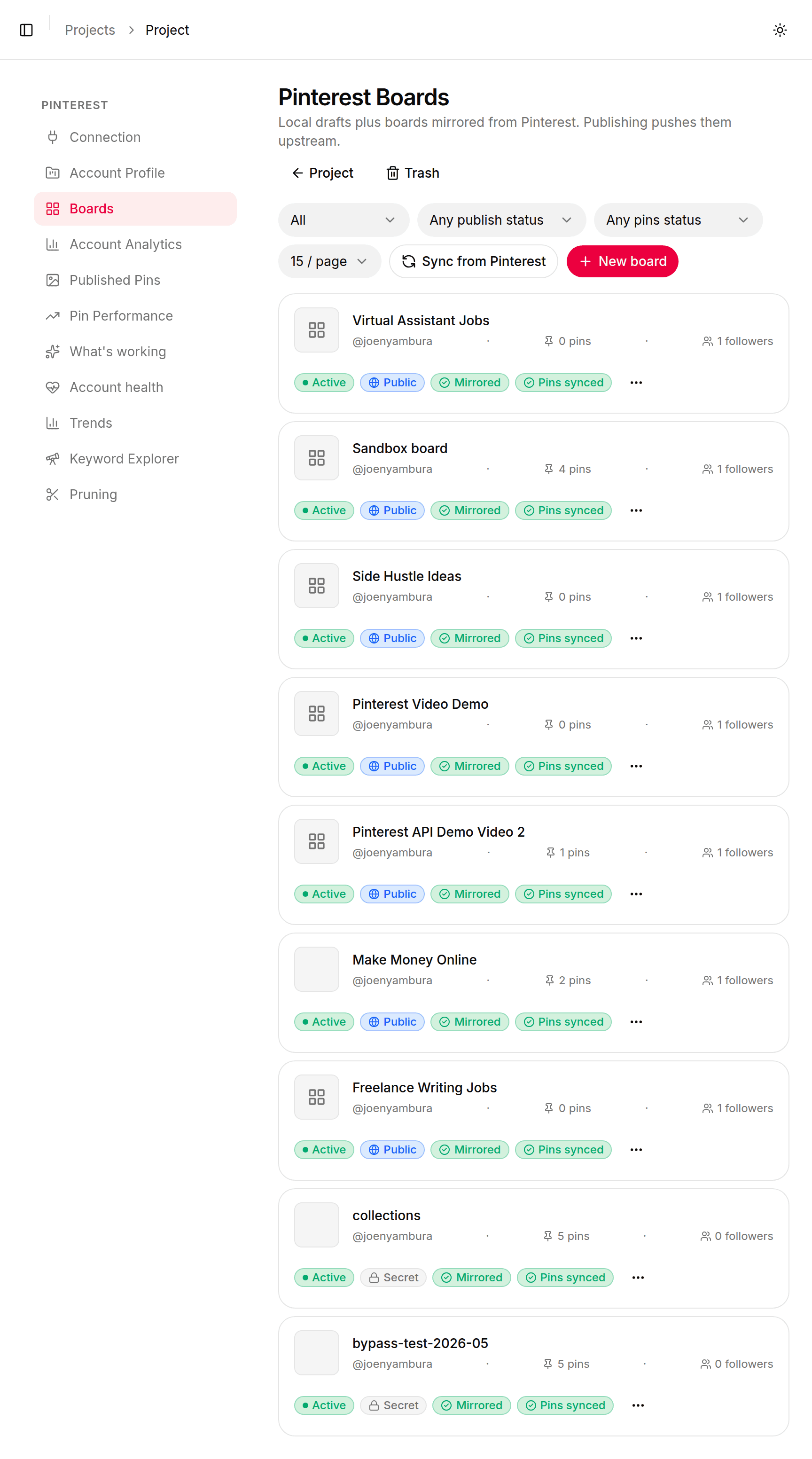
Your boards are pulled in when you connect Pinterest, and re-synced afterwards. Find them under Pinterest → Boards.
The page describes itself as "Local drafts plus boards mirrored from Pinterest. Publishing pushes them upstream." Each board shows whether it is Public or Secret, whether it is Mirrored from Pinterest, whether its pins have synced, and its pin and follower counts.
Two things you can do here:
Sync from Pinterest — pull in boards you've created on Pinterest since connecting.
New board — create a board here and let publishing push it up to Pinterest.
Every blog post is assigned to at least one board when you create it. That assignment is what decides where its pins land, and you can change it on the post's Boards tab.
The schedule
Approved pins are scheduled automatically. You don't have to do anything after approving. They queue up under Scheduled Pins, each with its board and the time it's due.
The Content runway card at the top answers "how long will my pins last?" It shows how many days of content are prepared, the current publish rate per day, and a health badge: Healthy (a full buffer), Topping up (refilling, on track) or Starved (prepared pins will run out before new ones are ready). If a project stays Starved, check Needs you for what's holding generation or approval back.
Each row carries a status: Pending (waiting for its time), Processing (being sent now), Pinned (live, with a View pin link straight to Pinterest) or Failed.
Two buttons sit above the list:
Plan batch asks the planner to schedule your approved pins now rather than waiting for its next pass.
Schedule a pin lets you pick one ready pin, the board it goes to, and the date and time yourself.
You can adjust how the queue behaves under Project Settings → Scheduling: "Pinning cadence, daily caps, lookahead window, and the timezone that anchors the daily cap rollover."
Publishing one pin yourself
Use Schedule a pin to choose the exact time. Pins you schedule yourself count towards the project's daily limit like any other, so you may see:
Daily limit reached — pick another day, or raise the daily pin limit in project settings.
Your Pinterest account is warming up — the account has used its pins for that day while it warms up. Pick another day.
To send a pin that's already in the queue immediately, open its ⋯ menu and choose Pin now.
Each of these also shows up under Needs you on your dashboard, so check there first.
What actually went live
Pinterest → Published Pins lists everything on Pinterest, described as "Pins live on Pinterest. Hide locally, edit the synced note, or prune deleted entries. New pins arrive via a board sync."
Each pin links straight out to Pinterest so you can see the real thing. A pin that published from the queue also shows Pinned with a View pin link on Scheduled Pins.
Analytics: Pending on a new pin is normal. Pinterest doesn't report performance immediately, so freshly published pins carry that label until data arrives, then switch to Completed.
Once analytics land, the app measures saves and outbound clicks rather than impressions, and biases future generation toward what actually performed. Impressions tell you a pin was shown; saves and clicks tell you it worked.
If a pin didn't publish
Work down this list. Anything not covered here is in Troubleshooting.
If a pin didn't publish
Was it approved?
Unapproved pins are never scheduled. This is the most common answer. Approve it under the project's Pin Content → Review.
Did it fail?
A Failed row on Scheduled Pins says why on its detail page. Open its ⋯ menu and choose Retry now to send it again.
Is publishing included on my plan?
Not on the free plan. You'll see Publishing needs a paid plan: "Your projects, pins and history stay exactly as they are." Pick a plan under Billing → Plans.
Have I used my monthly pins?
Pins are the metered resource. When you're out you'll see Monthly pin limit reached: "You have reached your monthly limit of [N] pins. Upgrade for more." The allowance resets at the start of the next billing period, and queued pins go out once it does.
Is Pinterest still connected?
Check Pinterest → Connection. If it says Expired or shows a Publishing paused banner, press Reconnect. See Connect Pinterest.
Is it just not due yet?
Check Scheduled Pins for its time. Pacing means "queued" is the normal state for most of your pins most of the time.