With a Pinterest business account: select Create → Create Pin, upload your media, add the title, description, link and board, choose "Publish at a later date," pick the date and time, and confirm. It's free, it's first-party, and it takes about ninety seconds.
JN
Joe Nyambura
Founder & operator, Pinners Haven · August 18, 2026
With a Pinterest business account: select Create → Create Pin, upload your media, add the title, description, link and board, choose "Publish at a later date," pick the date and time, and confirm. It's free, it's first-party, and it takes about ninety seconds.
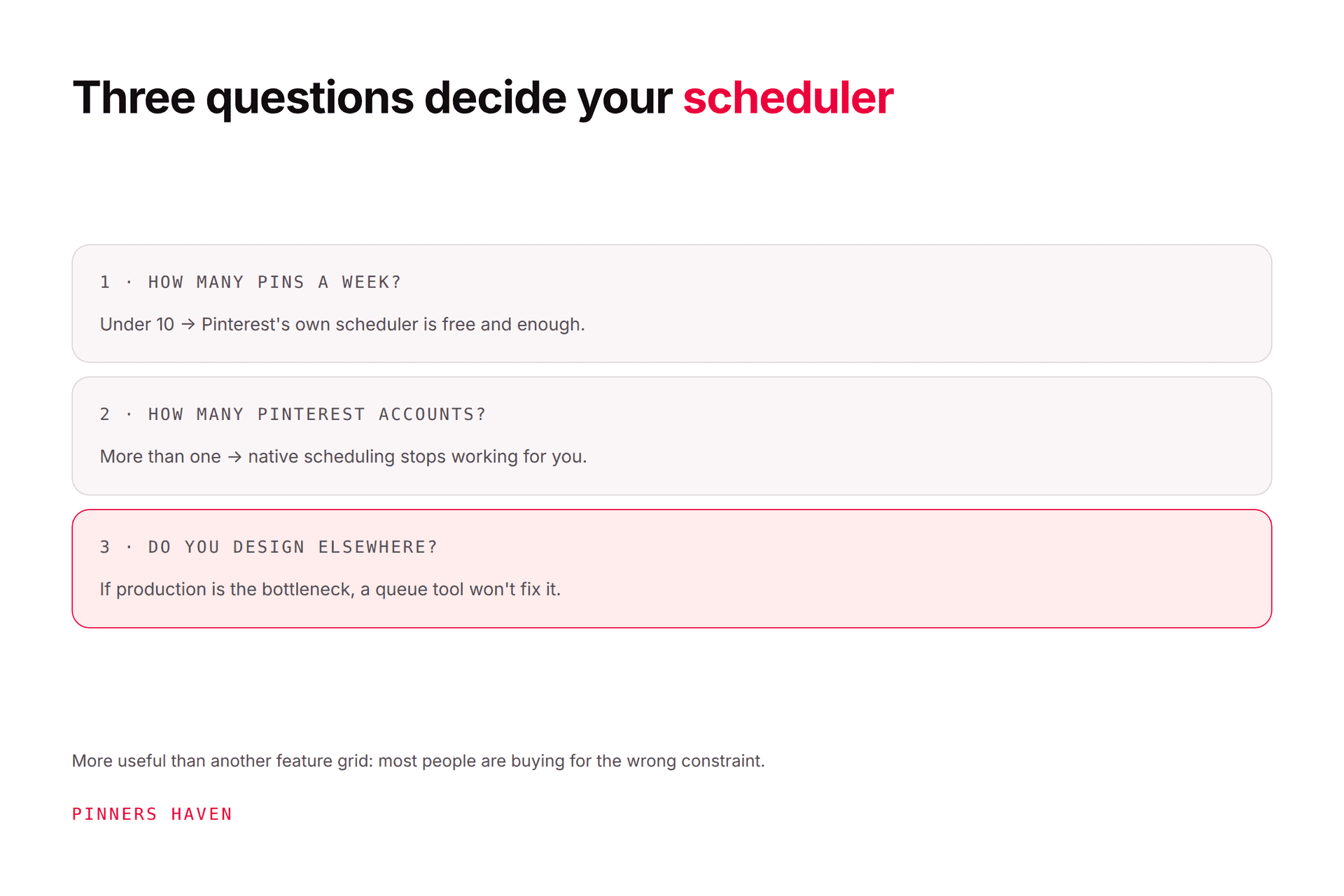
The catch, and nobody mentions it until you hit it: Pinterest currently lets you schedule one pin at a time, up to 10 pins in the future queue, a maximum of 30 days ahead.
For a lot of people that's genuinely enough. When it isn't, you have three ways out — RSS, bulk import, or a third-party scheduler, and we'll cover all three.
Add title, description, destination link, board, and any other details.
Choose Publish at a later date.
Select the day and time.
Finish and confirm.
One thing that confuses people: you can select up to 10 images during creation on desktop, but Pinterest makes a separate pin from each one. That's not a carousel, and it isn't the same as the 10-pin future-queue limit. Two different tens.
Scheduled pins appear on your profile above published content. A newly scheduled item can take a few minutes to show up, so don't panic and schedule it twice.
Schedule a pin on Android or iPhone
Open the app, signed in to the business account.
Tap the creation control, choose Pin.
Select an image or video, continue.
Add or edit the details.
Tap Schedule date or Schedule publish date.
Pick date and time, tap Done.
Tap Schedule and confirm.
Labels vary by app version and rollout, which is why this trips people up. If the schedule control isn't there: confirm it's a business account, update the app, and if it's still missing, use desktop. It's a rollout difference, not a fault with your account.
Edit or delete a scheduled pin
You can change after scheduling: publish date, title, board, description, destination link.
You cannot change: the image or video.
That last one is the gotcha worth writing down. If the media is wrong, you have to delete the scheduled pin and rebuild it, so capture the copy, destination, and planned time before you delete, or you'll be reconstructing it from memory.
To delete: open the scheduled pins above your published content, open the pin's menu, select Delete.
How to schedule more than 10 pins
Option 1 — RSS auto-publishing (free)
Pinterest can auto-publish pins from RSS when the feed matches a claimed website. Setup is currently documented for desktop.
The specifics that matter:
Supports RSS 1.x and 2.x, not Atom. If your feed is Atom, this won't work and the error won't be obvious.
Titles and descriptions come from each item's title and description fields.
Images are found in supported image, enclosure, or media tags.
New content becomes pins within 24 hours, oldest first.
Documented ceiling of up to 200 pins per day.
Review the feed output before you rely on it. RSS reproduces whatever your feed contains (weak titles, missing descriptions, badly cropped featured images) faithfully and at scale. And that 200/day figure is a technical maximum, not a recommendation.
Option 2 — CSV or TXT import (free)
Pinterest's import content guide covers uploading a file to create multiple image and video pins.
Start with a small validation file. Check encoding, required columns, media URLs, destination URLs, boards, and dates before importing a full campaign: a malformed import is tedious to unwind.
Option 3 — an authorised scheduler
Worth paying for when you need a longer calendar, bulk creation, approvals, several accounts, or consolidated reporting. Tailwind (from $17.99/mo), Buffer (from $5/channel), Later (from $18.75/mo), Hootsuite, and Metricool all schedule Pinterest. Our scheduler comparison has current prices for all of them.
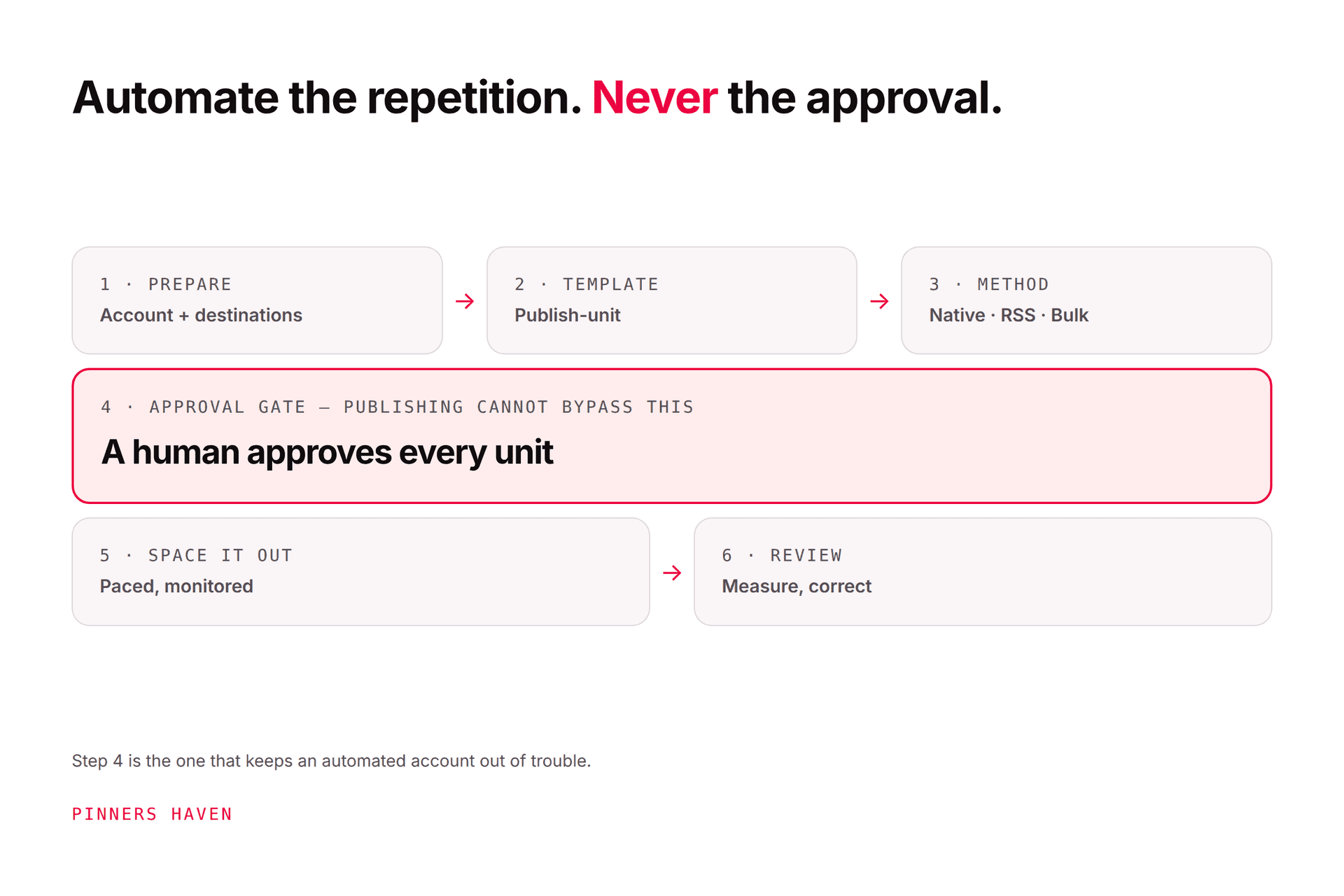
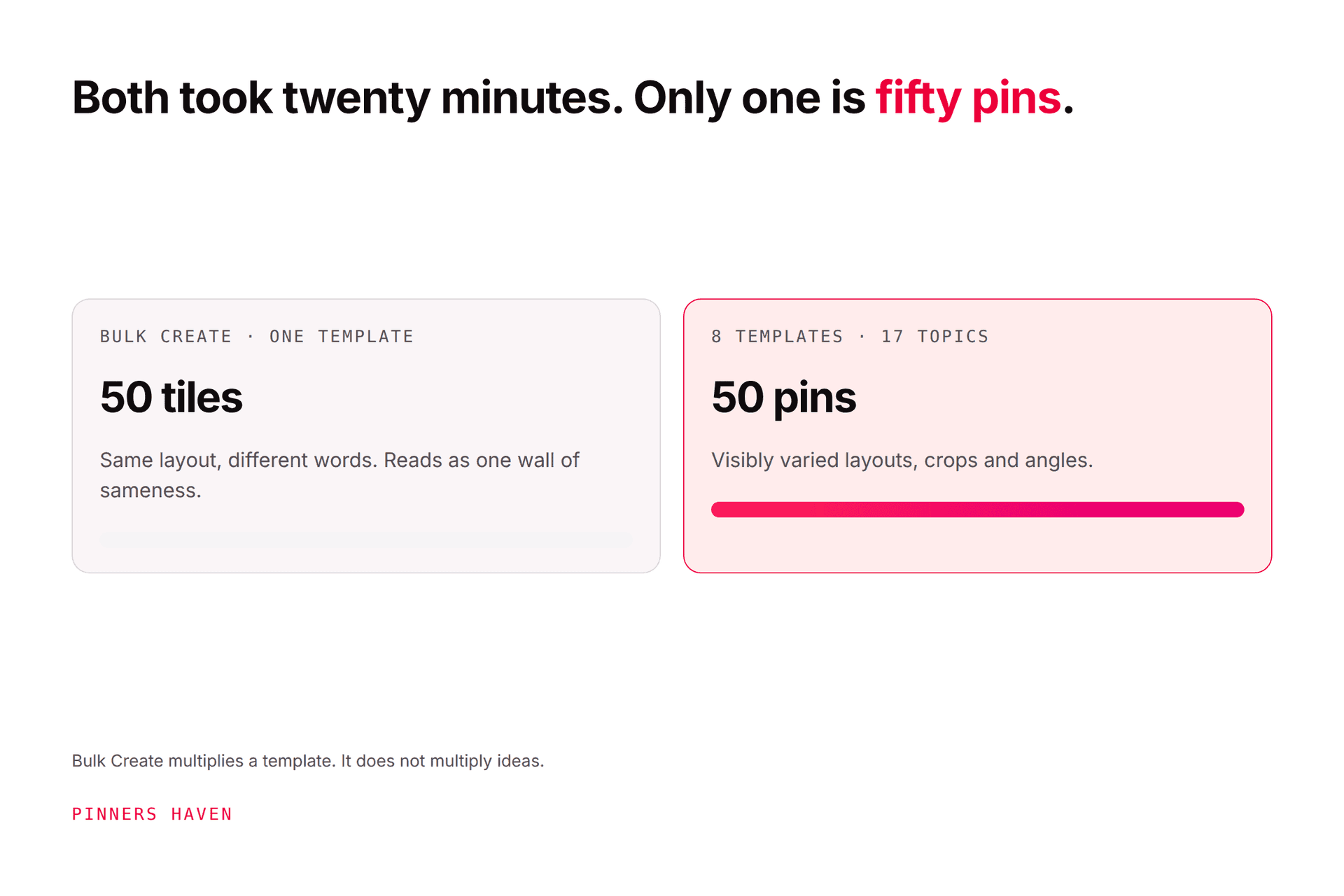
If your real problem is that you don't have 10 pins ready to schedule, that making them is what's slow — that's a different purchase. Pinners Haven generates the pin itself: twenty angles per topic, SEO title and three to five unique descriptions, an original image, alt text, then your approval before it publishes on a paced cadence. From $19/mo billed annually.
(Disclosure: we make Pinners Haven. We're not affiliated with Pinterest.)
Build a better scheduling calendar
Schedule from publish-ready records
Every entry should carry the final image, title, description, link, board, disclosure status, time, timezone, and reviewer. Never schedule from a folder of unnamed images while adding links from memory — that's how the wrong URL ends up on the right pin.
Match the board properly
Choose the narrowest genuinely relevant board. Repeating one pin across loosely related boards creates clutter and weakens the signal about who it's for.
Space it sensibly
There's no universal best daily count, and anyone quoting one is guessing. Schedule at the pace your original content supports. Pinterest advises publishing original work weekly and warns against duplicate pins in its performance guidance.
Check the timezone before you build
Record the account and scheduler timezone up front. Around daylight-saving transitions, verify how your tool displays local versus absolute time — this quietly ruins launch timing every spring and autumn.
Confirm delivery
After the scheduled time, check that the right media, title, board, link, and destination actually published. A calendar isn't finished until failed posts are visible and assigned to someone.
Troubleshooting
The schedule option is missing
Confirm it's a business account. Update the app. Try desktop. Check you're creating a supported standard pin.
Pinterest won't accept another scheduled pin
Count what's already queued: the documented limit is 10. Publish or delete something, or move to RSS, import, or a partner tool.
The time is wrong
Compare device, account, and scheduler timezones. Recheck after any daylight-saving change and before anything time-sensitive.
The media needs replacing
You can't edit scheduled media. Delete and recreate — capture the copy and link first.
The pin failed, or the link is blocked
Don't keep retrying. Test the final URL, the full redirect chain, security, page content, file format, and account authorisation, and look for any warning. Pause related queue items until you know the cause. If there's a warning, work the flagged-as-spam guide.
Frequently asked questions
Can you schedule pins for free?
Yes. Pinterest's native scheduler is free for business accounts, within the 10-pin, 30-day limits. RSS auto-publishing and CSV import are also free.
Can you schedule pins on a personal account?
Pinterest documents native scheduling as a business-account feature. Converting is free and keeps your existing pins and followers — see the business account guide.
How far ahead can you schedule?
30 days natively. Third-party tools offer longer calendars under their own plan limits.
Can you bulk schedule pins?
Not through the native future scheduler — that's one at a time. Pinterest supports RSS auto-publishing and CSV/TXT import for volume, and partner tools offer proper bulk workflows. Making the pins in the first place is a separate job: see bulk pin creator.
Can you schedule video pins?
The creation flow supports image or video uploads, but format and scheduler support varies by device and by tool. Test your exact format on the exact account before planning a campaign around it.
Does scheduling hurt reach?
Pinterest doesn't say scheduling reduces distribution. What hurts reach is duplicate content, irrelevant boards, and bursts — see safe automation and why impressions drop.
Use native scheduling until it's the bottleneck
For ten pins or fewer, Pinterest's free scheduler is simply the right answer. Move to RSS, imports, or a paid tool when volume, approvals, accounts, or reporting genuinely justify the extra system, not before.
Whichever method you land on, keep the final pin reviewed and the failure alerts visible. Those two habits matter more than the tool.