Canva for Pinterest: Templates, Sizes and the 12% Test
Canva is the default Pinterest design tool for good reason: it's fast, the templates are decent, and you can produce a competent pin in four minutes. It also has one habit built into it that quietly damages Pinterest accounts, and almost nobody warns you about it.
JN
Joe Nyambura
Founder & operator, Pinners Haven · August 18, 2026
Canva is the default Pinterest design tool for good reason: it's fast, the templates are decent, and you can produce a competent pin in four minutes. It also has one habit built into it that quietly damages Pinterest accounts, and almost nobody warns you about it.
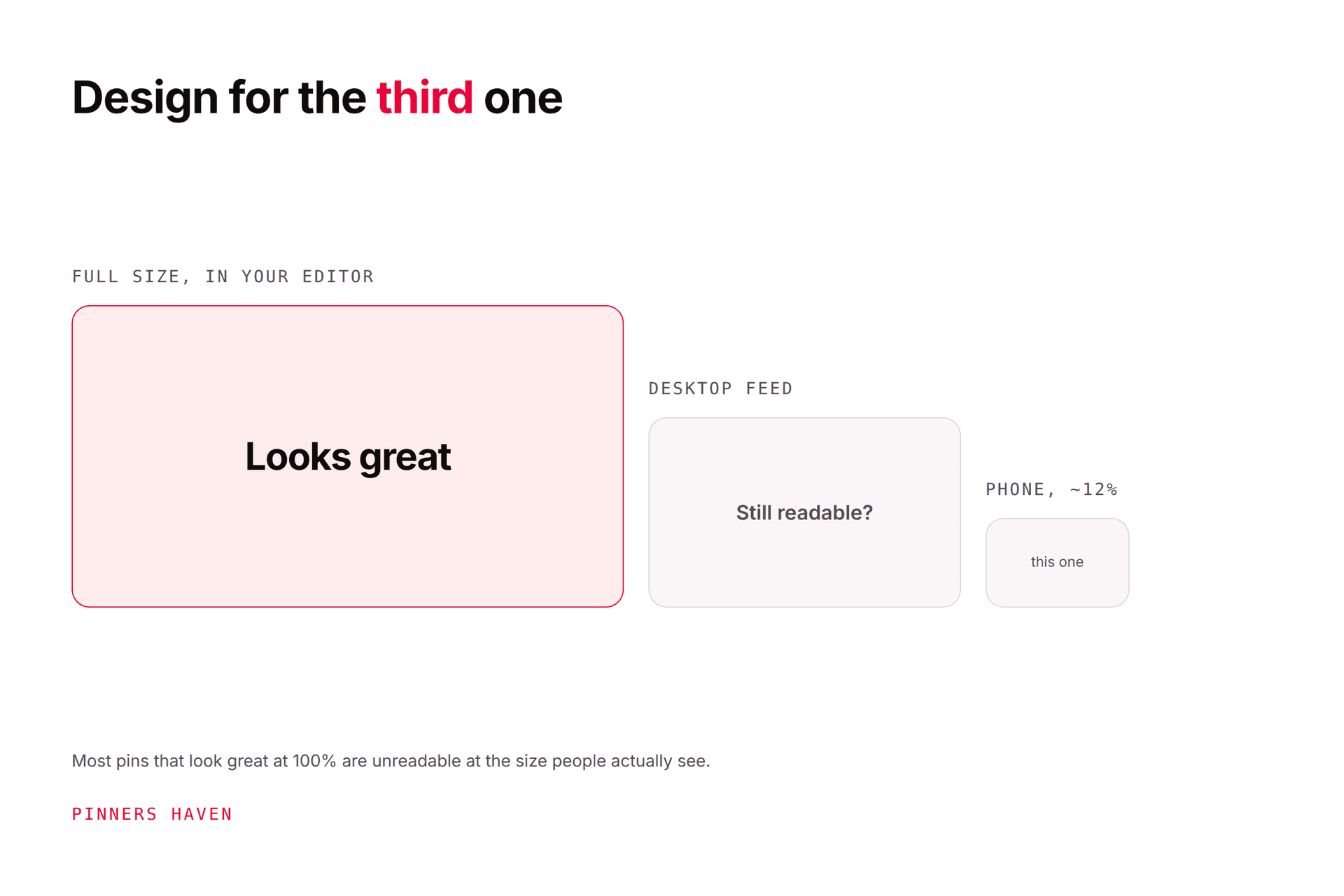
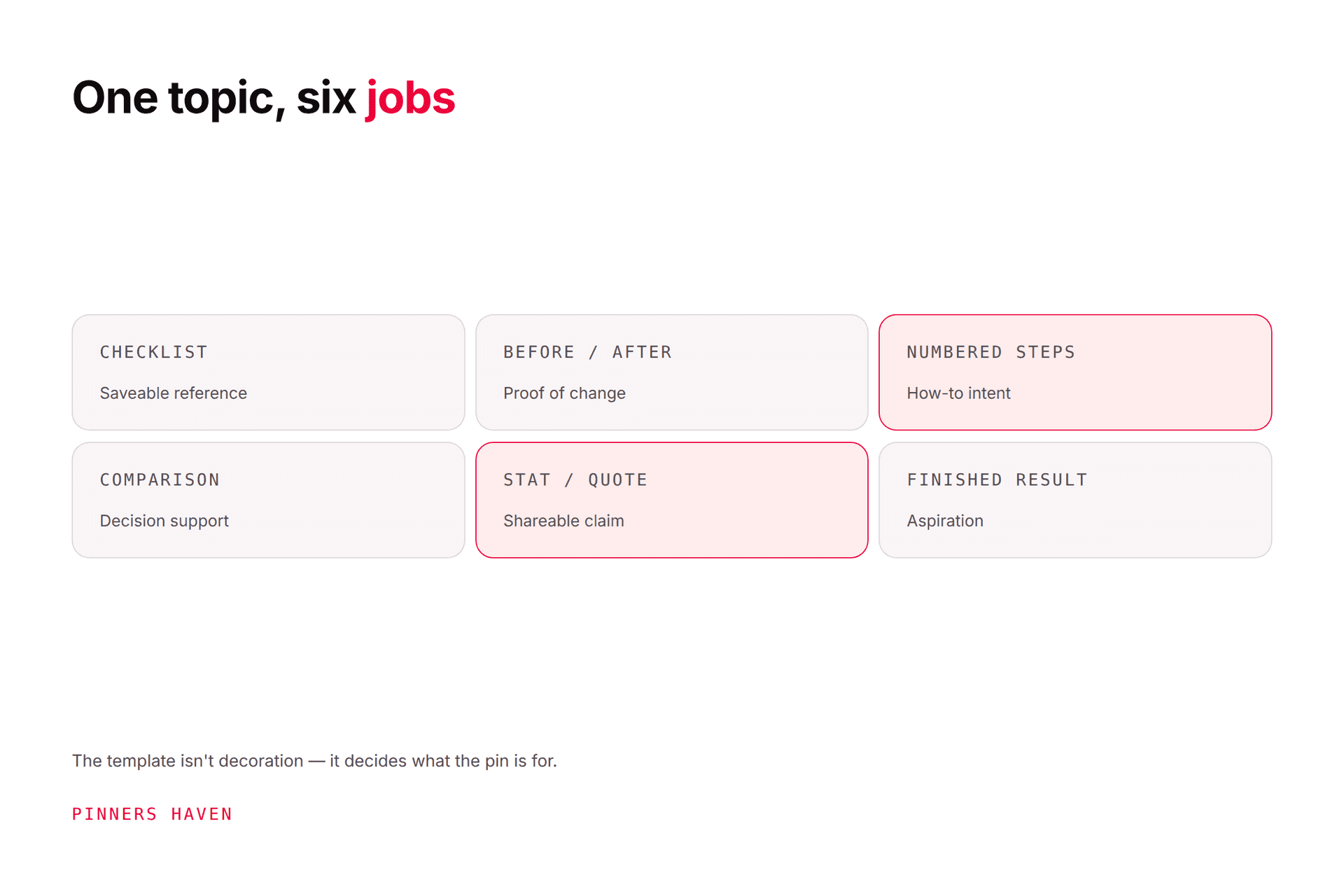
For Pinterest, build at 1000 × 1500 pixels, the 2:3 ratio Pinterest recommends, and judge every design at roughly 12% of that size, because that's how it will actually be seen. The templates that work are the ones whose structure matches the content's job: a checklist looks different from a comparison, which looks different from a finished result. And the Canva habit to avoid is duplicating one template and swapping the text, because a batch of pins that share a layout is a batch of cosmetic variations, which is the pattern Pinterest's guidance warns about.
Everything below is either a spec, a template job, or a way of not falling into that last trap.
Canva feature and pricing details checked 7 August 2026. Canva repackages frequently; verify before relying on any Pro/free distinction.
The specs that actually matter
Spec
Value
Why
Dimensions
1000 × 1500 px
Pinterest's recommended 2:3 ratio
Aspect ratio
2:3
Taller pins can be truncated in feed
Headline words
Under 10
Anything longer is unreadable small
Fonts
Max 2–3
More reads as amateur at any size
Text safe area
Keep off the outer edges
Overlays and crops eat the margins
Export
PNG for text, JPG for photos
Text stays crisp; photos stay small
Create a custom-size design at 1000 × 1500 rather than searching Canva's "Pinterest Pin" presets, which include sizes that aren't 2:3.
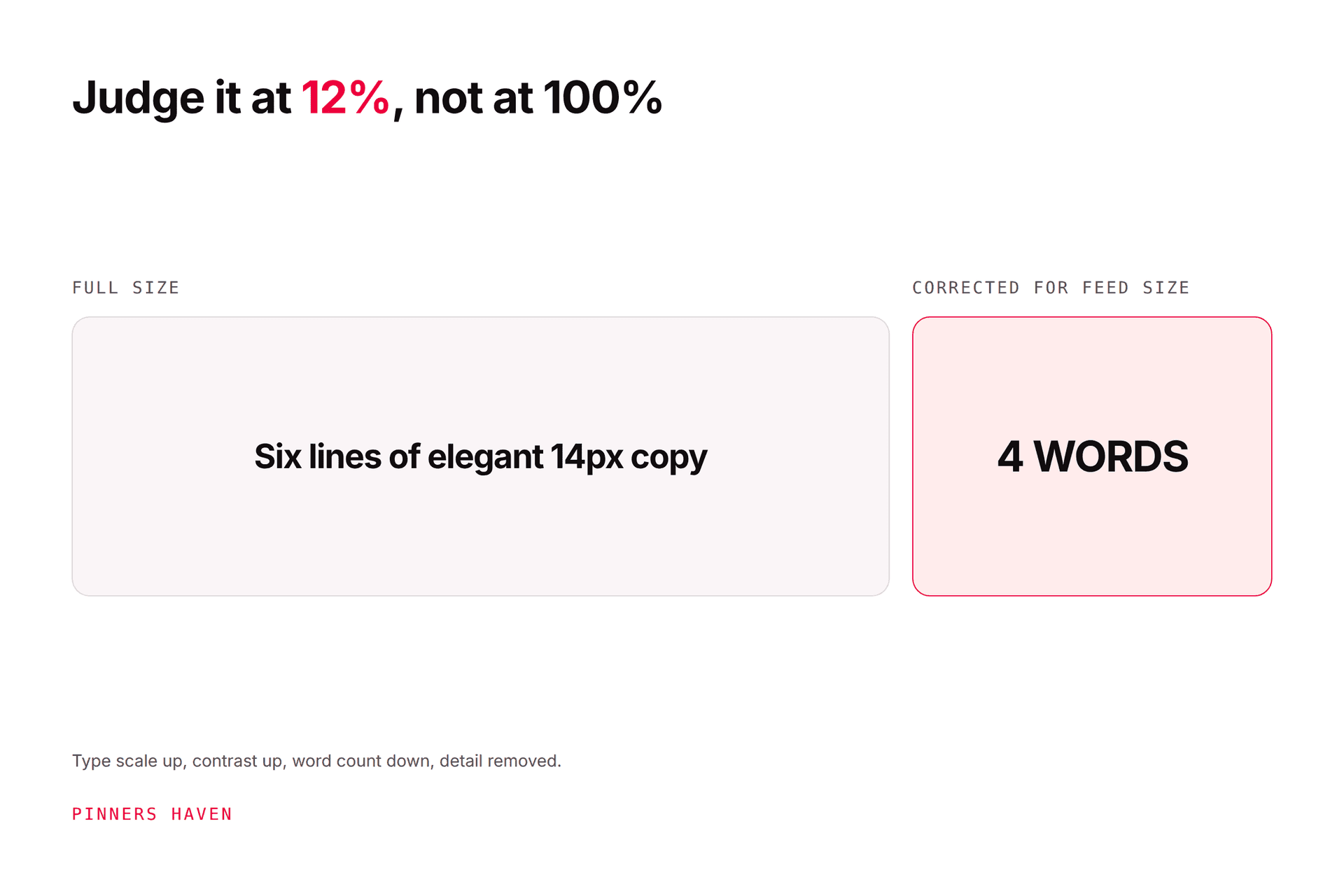
The 12% test
This is the single highest-value habit in Pinterest design and it takes ten seconds.
Zoom your finished pin out until it's about the size of a thumbnail on a phone. Then ask:
Can you read the headline?
Can you tell what the pin is about?
Does anything remain distinctive, or is it a grey rectangle?
Most designs fail all three, because they were designed at 100% on a laptop. The fix is nearly always the same: fewer words, bigger type, more contrast, less detail. A pin that looks slightly too bold at full size is usually correct at feed size.
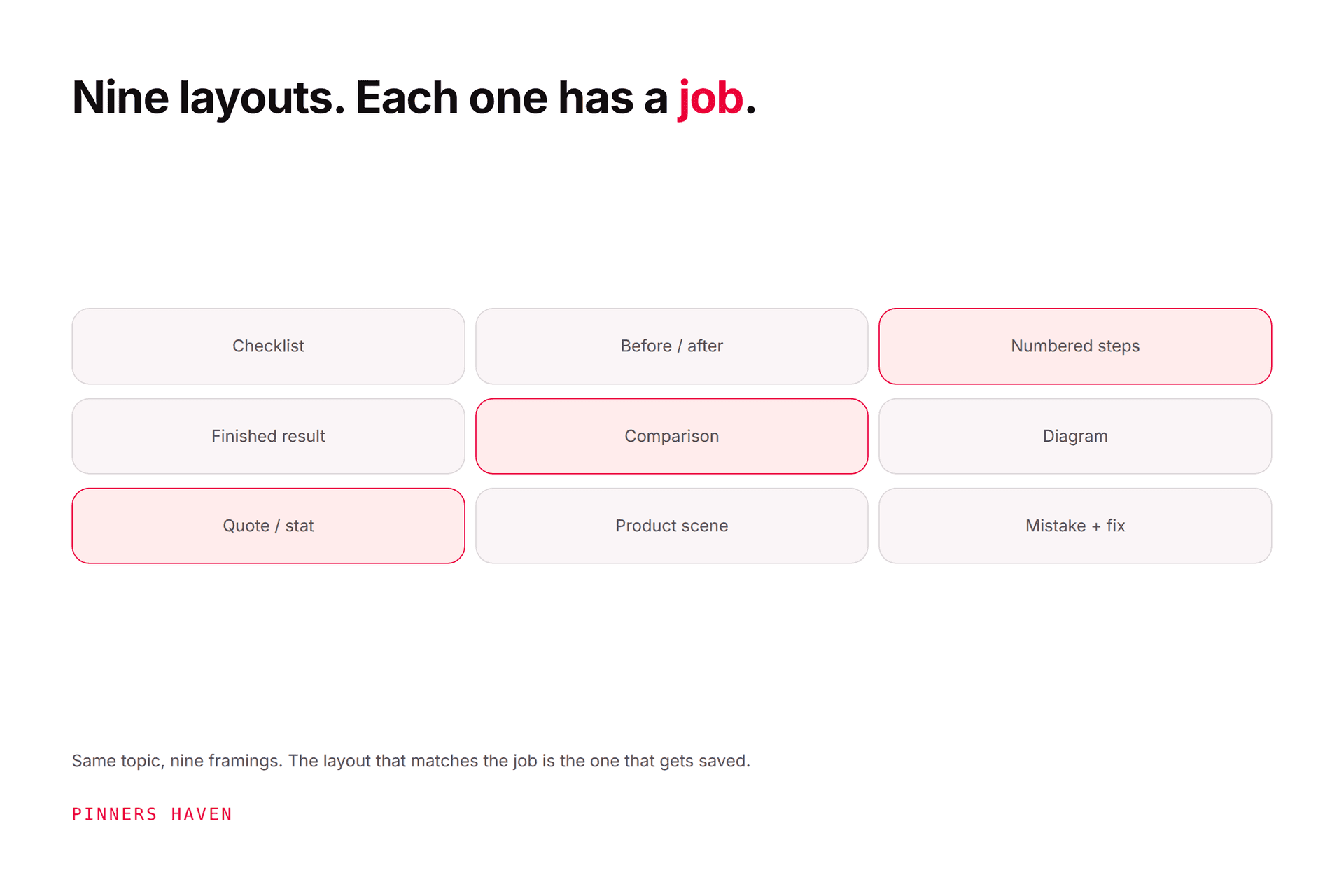
Ten template jobs worth building once
The mistake is building one beautiful template. The fix is building a small set where each layout does a different communication job, then reusing the set forever.
#
Template job
Structure
Use it for
1
Bold statement
Full-bleed image, large headline, minimal else
Broad topics, strong photography
2
Numbered list
Headline plus visible count
"7 ways", roundups
3
Checklist
Actual ticked items visible
Processes, packing, prep
4
Comparison
Split down the middle
This vs that, before/after
5
Step process
3–4 stacked panels
Tutorials, how-tos
6
Diagram / labelled
Image with callouts
Measurements, anatomy, layouts
7
Quote or stat
Type-led, image secondary
A single number or claim
8
Collection grid
4–9 tiles
Roundups, gift guides, ideas
9
Product in context
Lifestyle shot, small text block
Ecommerce, POD
10
Mistake / correction
Wrong on top, right below
Troubleshooting, myths
Build these once, in your brand colours and fonts, save them as Canva templates, and you have a set that produces genuinely varied output without designing from scratch again. Pin design ideas covers choosing between them per topic.
The rule that makes the set work: let the content pick the template. A checklist post gets template 3. A comparison gets template 4. If you're forcing a comparison into the bold-statement layout because you like it more, you've inverted the whole point.
The Canva habit that causes duplicate pins
Here's the thing nobody tells you about designing Pinterest pins in Canva.
Canva's entire workflow encourages duplication. Duplicate the page, change the headline, change the photo, export. It's fast and it feels productive, and forty pins later you have forty pins that share a layout, a palette, a type treatment and a composition, differing only in words that are too small to read at feed size.
That's a cosmetic variation, not a new concept. Our fresh pins guide draws the line: a meaningful variation changes what the reader learns; a cosmetic one changes the decoration. And Pinterest's own guidance warns that repeatedly uploading content that already exists may get you flagged as spam and temporarily blocked from creating Pins.
Two fixes, both cheap:
Spread a batch across at least 5 templates. A layout carrying more than about ten pins in a batch is doing too much work. For a 50-pin batch, plan 8. The arithmetic is in bulk pin creator.
Retire templates deliberately. A layout that performed well six months ago has been seen. Rotate it out rather than waiting for reach to tell you.
On Canva's Bulk Create
Canva's Bulk Create generates a design per row of a spreadsheet and it's genuinely useful. It's also a duplication engine if you run it once against one template, because that is precisely what it does by design.
Use it per template group: eight small bulk runs across eight layouts rather than one run of fifty. Same time, completely different output. It's a Pro feature, and the practical ceiling is well below its stated row limit before performance degrades.
Things to get right in the design itself
Contrast. Text over a busy photo needs a scrim, a solid block, or a darkened overlay. "It looks fine on my monitor" is not the test; the 12% view is.
Type hierarchy. One dominant line, one supporting line, nothing else competing. Three equally-sized text blocks is the most common amateur tell.
Brand consistency without sameness. Same fonts and palette across all ten templates; different structures. That's how an account looks coherent without looking repetitive.
Alt text. Write it in Pinterest, not Canva. It's an accessibility requirement first and a small relevance signal second.
Rights. Canva's licensing differs between free and Pro elements and by use case. If you're selling something, check the licence for every element rather than assuming. This is the most common quiet legal exposure in Pinterest design.
Where Canva stops being the answer
Canva is excellent at making a pin. The problem is arithmetic.
Ten template jobs, several concepts per page, across a growing content library, refreshed each season, with templates retired as they wear out. At twenty pages that's manageable. At two hundred it's a part-time job, and the thing that gets dropped is template variety, which puts you straight back into the duplication problem above.
Pinners Haven covers that specific layer. It writes up to 20 angles per topic, generates an SEO title with three to five unique descriptions per pin, and designs original images using AI photography colour-matched to human-designed templates, so the output isn't one layout reskinned. The Freshness Meter tracks wear per template and retires each after roughly five to ten uses, which is the "retire deliberately" discipline above, done automatically. Nothing publishes until you approve it.
Honest comparison, because Canva is genuinely good: if you're publishing twenty pins a month and enjoy designing, Canva plus the ten templates above is a completely sufficient setup and costs less. The case for tooling starts when the volume outgrows the hours, not before.
Plans start at $19/mo billed annually with a 14-day trial; no card is needed, and when it ends publishing pauses until you pick a plan.
(Disclosure: we make Pinners Haven. We're not affiliated with Pinterest or Canva.)
Frequently asked questions
What size should a Pinterest pin be in Canva?
1000 × 1500 pixels, a 2:3 ratio. Create a custom-size design rather than using a preset, since some Pinterest presets aren't 2:3. Taller pins risk truncation in the feed.
Is Canva free for Pinterest pins?
Canva's free tier can make Pinterest pins. Some elements, fonts, brand kit features and Bulk Create sit behind Pro. Check the licence on individual elements if you're selling something, since licensing differs by element and use.
How many Canva templates do I need for Pinterest?
Eight to ten, each doing a different communication job rather than ten variations of one look. That set covers most content types and prevents the batch-sameness problem that comes from reusing a single layout.
Do Canva templates hurt Pinterest reach?
Templates don't, repetition does. Pinterest warns that repeatedly uploading content that already exists can get you flagged. A layout used across a whole batch produces near-identical pins, so spread batches across several templates and retire layouts as they age.
Should I use Canva's Bulk Create for Pinterest?
Yes, but run it per template rather than once across everything. One run against one layout produces exactly the cosmetic-variation pattern to avoid. Several smaller runs across different layouts take the same time and produce a genuinely varied batch.
PNG or JPG for Pinterest pins?
PNG for text-heavy designs, where crispness matters most. JPG for photographic pins, where file size matters more than perfect edges. Either is acceptable to Pinterest.
How do I make my Canva pins look less generic?
Stop starting from Canva's stock templates, which thousands of people also use. Build your own small set in your own palette and fonts, and let the content's structure choose the layout rather than picking the prettiest one.
Design for the thumbnail, vary the structure
Two habits carry most of the value here. Design at full size but judge at 12%, because that's the only size that ever matters. And build a set of templates that do different jobs, rather than one template that does everything and produces a wall of pins nobody can tell apart.
Do those and Canva is all the design tool most Pinterest accounts will ever need.